
The Problem
There’s a specific kind of dread that hits right after you click send. Maybe the attachment was missing. Maybe you meant to send it to Dana in Accounting, not Dana in Legal. Maybe autocorrect quietly sabotaged your subject line. Whatever it was, the email is gone, and now you’re staring at your Sent folder wondering if there’s any way to pull it back.
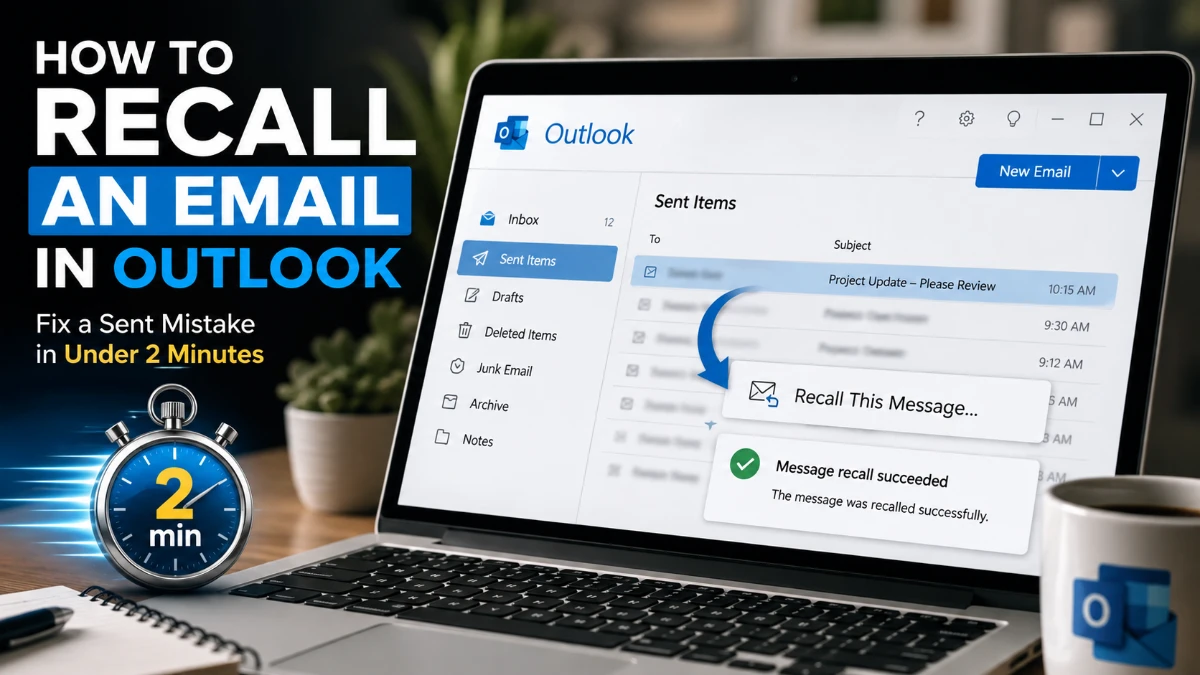
There is, sometimes. Learning how to recall an email in Outlook is the first move most people search for in this exact moment, and the good news is that it’s a real feature, not a myth. The catch is that it doesn’t always work, and knowing why will save you a lot of wasted clicks.
Why This Isn’t a Simple Yes-or-No
Recall isn’t one feature; it’s actually two different systems depending on which Outlook you’re using, and that difference decides whether you’re looking at a quick fix or a dead end.
Classic Outlook for Windows runs its recall attempt locally, quietly racing against the recipient’s inbox to delete the message before they open it. It only works if the recipient hasn’t read the email yet, and even then, success is inconsistent, often cited around 40% of the time. New Outlook and Outlook on the web take a completely different approach, handling the request through Microsoft’s servers rather than the desktop app itself. That server-side method pushes success rates up to roughly 90%, and in a further twist, it can occasionally retract a message even after the recipient has opened it, if your organization’s IT admin has turned that setting on.
Neither version works on Outlook for Mac or the mobile apps, and neither works if the recipient is outside your Microsoft 365 organization or on a personal account like Gmail.
The Solution: Recall in Classic Outlook
If you’re on the traditional desktop app, here’s the exact path.
- Head to Sent Items and open the message by double-clicking it.
- From the Message tab, click Actions, then Recall This Message. (On the Simplified Ribbon, this hides under More Commands, then Actions.)
- Choose Delete unread copies of this message, or select the replace option if you also want to send a corrected version.
- Enable the confirmation checkbox, then click OK.
Remember, this only has a shot at working if the recipient hasn’t opened the email yet.
The Solution: Recall in New Outlook or the Web
If you’re using the new Outlook for Windows or Outlook on the web, the process is shorter and considerably more reliable.
- Open the message from Sent Items.
- Click the three-dot menu, then Advanced Actions, then Recall Message.
- Confirm the recall.
Because this version runs through Exchange Online rather than checking the recipient’s local inbox, it’s the stronger of the two options whenever you have a choice between clients.
The Solution: What If You’re on Mac or Mobile?
Neither Outlook for Mac nor the mobile apps support recall directly. If the email that needs fixing was sent from either, log into Outlook on the web instead and recall it from there using the steps above.
Confirming It Worked
Every recall attempt triggers a Message Recall Report sent to your own inbox, arriving within about 30 seconds for the cloud-based version, and slower for classic Outlook. This report labels each recipient’s outcome as Recalled, Pending, or Failed, and the link inside it typically stays valid for about a week, so don’t leave it unread for long.
When the Solution Doesn’t Work
A handful of situations reliably block a successful recall:
- The recipient already opened the message, and you’re on classic Outlook or your org hasn’t enabled read-message recall in new Outlook.
- The recipient uses a personal account instead of Microsoft 365.
- An inbox rule moved or forwarded the message before recall could catch it.
- The recipient’s organization hasn’t agreed to cross-tenant recall with yours.
- Their mailbox lives on an on-premises server rather than Exchange Online.
If you land in any of these buckets, stop refreshing your inbox waiting for a miracle. Send a quick, honest follow-up correcting the mistake, and if the content was sensitive, follow up by phone or chat rather than relying on email alone.
The Action That Prevents This From Happening Again
Recall is a rescue tool, not a guarantee, and even its best version tops out around 90% inside your own company. The more dependable fix is stopping the email before it ever leaves your outbox in the first place.
| Where you are | The fix | Delay window | Where to turn it on |
| New Outlook / Web | Undo Send toast | 5–30 seconds | Settings, then Mail, then Compose and reply |
| Classic Outlook | Defer-delivery rule | 1 minute minimum | File, then Manage Rules & Alerts |
| Outlook for Mac | Manual Delay Delivery | Set per message | Options tab, then Delay Delivery |
Set one of these up today, and the next time your finger hits send a moment too soon, you’ll have a built-in buffer instead of a scramble. That buffer works on every recipient, personal account or not, which is more than can be said for recall itself.
The Takeaway
Knowing how to recall an email in Outlook gets you out of trouble sometimes, especially if you’re on the new Outlook or the web and catch the mistake fast. But the real skill worth building is the habit of a few seconds’ delay before every send, because that’s the one fix that works regardless of what version anyone else is running.
Frequently Asked Questions
New Outlook or Outlook on the web, since the cloud-based recall reaches roughly 90% success versus about 40% for classic Outlook.
Only in new Outlook, and only if your organization’s admin has specifically enabled that setting.
Nothing; recall only works between Microsoft 365 accounts in participating organizations; personal and non-Microsoft accounts can’t be recalled.
Not from the mobile app itself. Log in to Outlook on the web or a desktop client to complete the recall.
Expect a Message Recall Report within about 30 seconds for new Outlook or web, sometimes longer for classic Outlook.
No, use Outlook on the web instead for the same cloud-based recall available in the new Outlook.
Send an immediate follow-up correcting the error, and contact the recipient directly if the mistake involved sensitive information
Yes, set up an Undo Send delay or a defer-delivery rule so outgoing emails pause for a short window before actually sending.
Only if both organizations have explicitly enabled cross-tenant recall with each other; otherwise, it won’t succeed.
Yes, admins can configure this maximum recallable age anywhere from 5 minutes to 10 years, depending on their organization’s policy.